Saved Searches
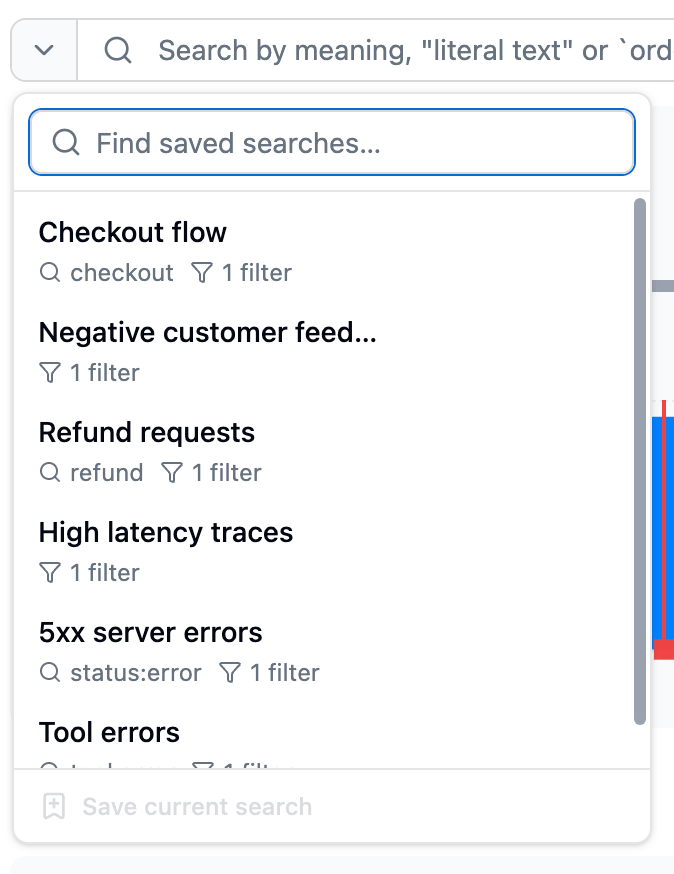
A saved search is a reusable search query, filter set, or both. Save it once, then return to the same cohort from the Saved searches dropdown on the Traces page.
What a Saved Search Stores
Each saved search stores:
- A query: The text from the search bar, if any
- A filter set: The filters active when you saved, if any
- A name: A human-readable label
A saved search must include a query, filters, or both. “All errors in production this week” might use only filters; “jailbreak attempts” might use only a query.
Saved searches are project-scoped. Two projects can have saved searches with the same name; they’re independent.
The Saved searches dropdown
Saved searches live in the Saved searches dropdown, on the left of the search bar on the Traces page. Open it to see every saved search in the project. Each row shows:
| Element | What it shows |
|---|
| Name | The label you gave the saved search |
| Query | A preview of the search text, if the saved search has one |
| Filters | How many filters are part of the saved search |
Creating a Saved Search
- On the Traces page, run a query, apply filters, or both.
- Click Save search, or open the Saved searches dropdown and click Save current search at the bottom.
- Give it a descriptive name and confirm.
The saved search becomes active right away, and the new entry appears in the Saved searches dropdown.
Good names describe what’s in the cohort, not how you searched for it. “Failed payments last week” is more useful at a glance than “q: payment errors filter: status=error”.
Renaming and Deleting
Hover a row in the Saved searches dropdown to reveal its actions, then rename or delete the saved search. Deleting removes only the bookmark; the underlying traces are not affected. Deleting a saved search also removes any monitor alerts watching it.
Editing a Saved Search
When you change the query or filters on a loaded saved search, Latitude shows two actions:
- Update saved search: Overwrite the saved search with the current query and filters.
- Save as new search: Keep the original and create a new saved search from the current state.
Use Update saved search for changes you want to keep, such as expanding the time range from 7 to 30 days. Use Save as new search when you want a sibling search, such as one that adds a model filter.
The update action is disabled until there’s a change to save.
Workflows
Investigate a specific cohort
You’re investigating reports that the agent gets confused during multi-turn checkout flows.
- Run a search like
"checkout" and add a filter for metadata.flow = "checkout" and spanCount >= 5.
- Save it as “Checkout flows over 5 steps”.
- Work through the matches, opening each trace to inspect and annotate it.
- Reopen the saved search whenever you want to return to the same cohort.
Watch for a recurring issue
You’ve resolved a tool-retry issue and want to make sure it doesn’t return.
- Run a search filtered to the relevant tag or metadata.
- Save it as “Tool retry regressions”.
- Reopen it whenever you want to check, or point a monitor at it to be alerted automatically when matching traces arrive.
Share a cohort with a teammate
You’ve found interesting jailbreak attempts and want a teammate to review them.
- Save the search with a clear name.
- Tell your teammate the name.
- Saved searches are shared across the project, so they’ll find it in the Saved searches dropdown.
What Saved Searches Don’t Do
Saved searches are bookmarks, not subscriptions. On their own they don’t notify you, generate evaluation scores, or run background processing when a new trace matches. To get alerted when matching traces start arriving, spike, or stay elevated, point a monitor at the saved search. For automated detection that produces scores and feeds issue discovery, see Flaggers.
Next Steps
- Monitors: Alert on a saved search when matching traces arrive, spike, or stay elevated
- Search Overview: How search itself works
- Flaggers: Automatic annotators for common failure categories
- Inline Annotations: Leave feedback on traces from your saved search
- Filters: The shared filter system used inside searches