

Sandbox
A sandbox is an isolated environment where you can send and inspect traces while you build. Point your agent at a sandbox from your dev or staging environment and watch exactly what it did in Latitude’s traces UI — without your development traffic ever touching your production dashboards, billing, or alerts. A sandbox is deliberately minimal and focused on trace-level debugging: it ingests and shows your traces, and nothing more. It mirrors your organization’s project layout but holds completely separate data — your development traces.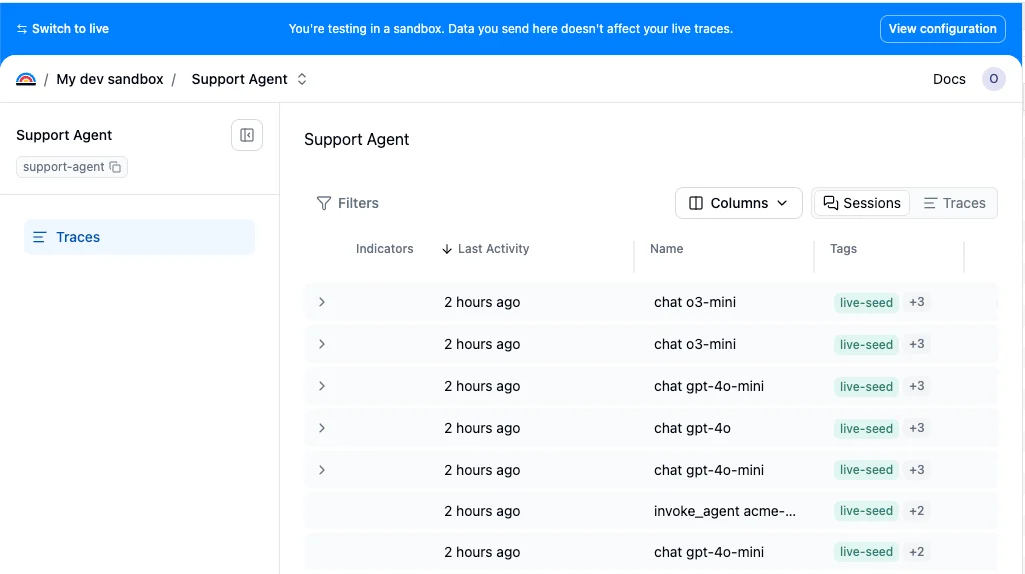
Switching to a sandbox
Your organization has a single sandbox. Flip the Sandbox toggle in the sidebar to switch into it — the first time, Latitude creates your sandbox and a sandbox copy of the project you’re currently in; after that, the toggle just takes you there (and mirrors any new project you switch from). While you’re in a sandbox, a blue banner across the top makes it unmistakable which environment you’re in, and Switch to live takes you back.
What’s available in a sandbox
A sandbox is intentionally light. It gives you the full trace-level debugging experience — the Traces and Sessions list, grouping, sorting, filters, and per-trace detail (duration, tokens, spans, model, status). The production monitoring layer is not available in a sandbox. The following features do not run on sandbox traces, by design:- Semantic and saved searches
- Monitors and alerts
- Issue detection and clustering
- Evaluations, annotations, and flaggers
- Outbound notifications (email, Slack, webhooks) — a sandbox never reaches an external channel, so your experiments can’t page teammates or hit customer alert channels
Using the same project identifiers as production
You instrument your code with the same project names everywhere — the API key decides where the traces land. Inside a sandbox you add the production projects you want to debug (which links them by stable id), or create sandbox-only projects for prototyping. The only thing you change when developing against a sandbox is the API key. Sandbox keys are created from inside the sandbox and are prefixedlat_sandbox_, so they’re easy to spot in code, logs, and review:
Differences from production
Rate limit
Sandbox keys have their own, lower ingest rate limit (60 requests/min, 64 MB/min). Pointing real production traffic at a sandbox key fails loudly and immediately with a
429 — a clear signal to fix the key.Retention
Sandbox traces are short-lived — spans are retained for 7 days and then age out. A sandbox is for active debugging, not long-term storage.
Billing
Sandbox usage is completely free. Sandbox traces are never metered or charged and never touch your credit balance. Abuse is bounded by the rate limit and a per-period span quota instead.
Span quota
Sandbox ingestion is bounded by a per-period span quota that scales with your plan: 100,000 spans on Free, 1,000,000 spans on Pro, and unlimited on Enterprise.
Sleep and reactivation
A sandbox is put to sleep (archived) after 7 days of inactivity. Sleeping sandboxes hold no live capacity. Sending traces to a sleeping sandbox is rejected with a403 (mirroring how an out-of-credits production org behaves) — nothing is silently accepted, and the sandbox isn’t silently revived. To wake it back up, open the sandbox and press Activate in the banner (which turns gray while the sandbox is asleep) to resume ingestion.
Related
- Environments: Separate dev, staging, and production traces with tags or metadata
- Start tracing: Instrument your agent and send traces to Latitude
- Traces: The traces UI you use inside a sandbox